Loading
How to use the ParBoilers site
A plain-English walkthrough of everything you'll do here — joining, registering for tournaments, scoring, and seeing results. Take your time, and feel free to print this page.
Quick start (first-time members)
If you're new, here's the short version. The rest of this page walks through each step.
- Create your account. Use the menu (☰) in the top-right and pick Join the Club.
- Confirm your email. Open the welcome email and click the gold Confirm Email button.
- Find an upcoming tournament. Use the Tournaments menu at the top.
- Sign up. Pick your tee, choose your side games, add a guest if you'd like, then click Register.
- On tournament day, tap any Start Scoring button (or the green Resume Scoring pill in the bottom-right) to enter scores.
- After the round, open the leaderboard for live standings and (once the admin publishes) flight results, skins, KP, and low putts.
1. Joining the Club
- In the top-right of any page, click the ☰ menu icon.
- Click Join the Club.
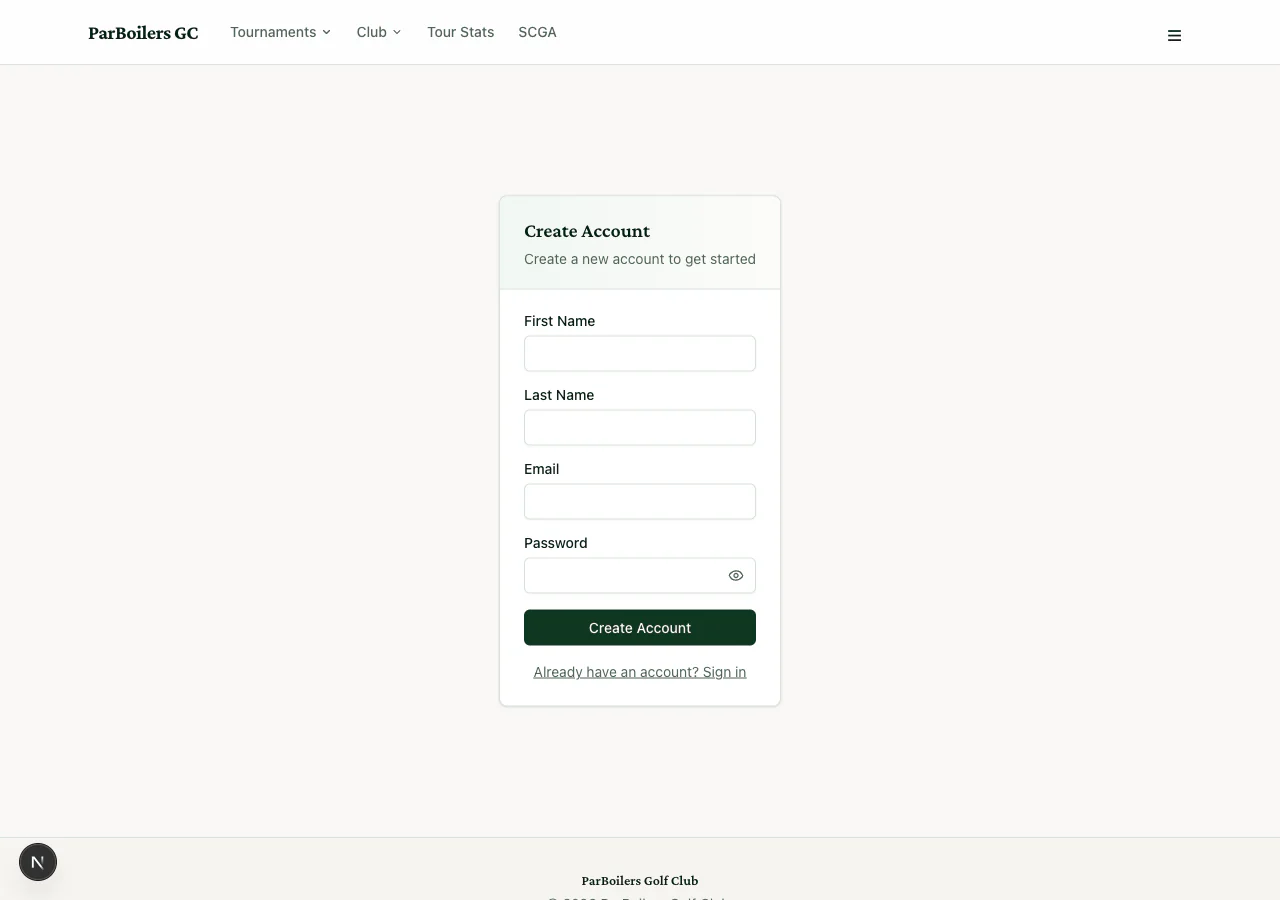
- Fill in your first name, last name, email, and a password. Pick something you'll remember — you can reset it later if you forget.
- Click Create Account.
- Check your email inbox for a welcome message from us, and click the gold Confirm Email button inside.


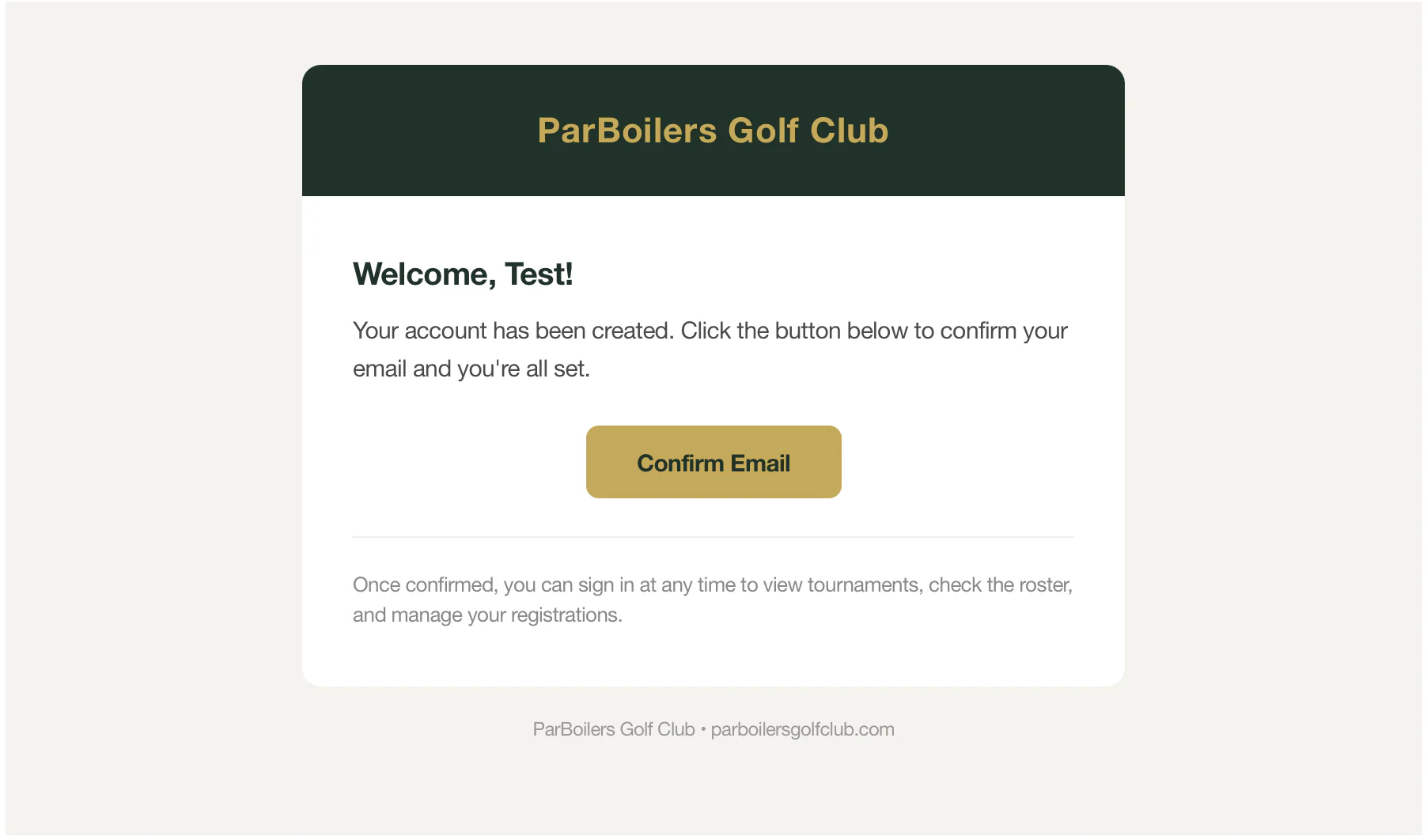
Didn't get the email? Check your spam or junk folder. If it's still not there, contact us (see section 8).
2. Your dashboard & profile
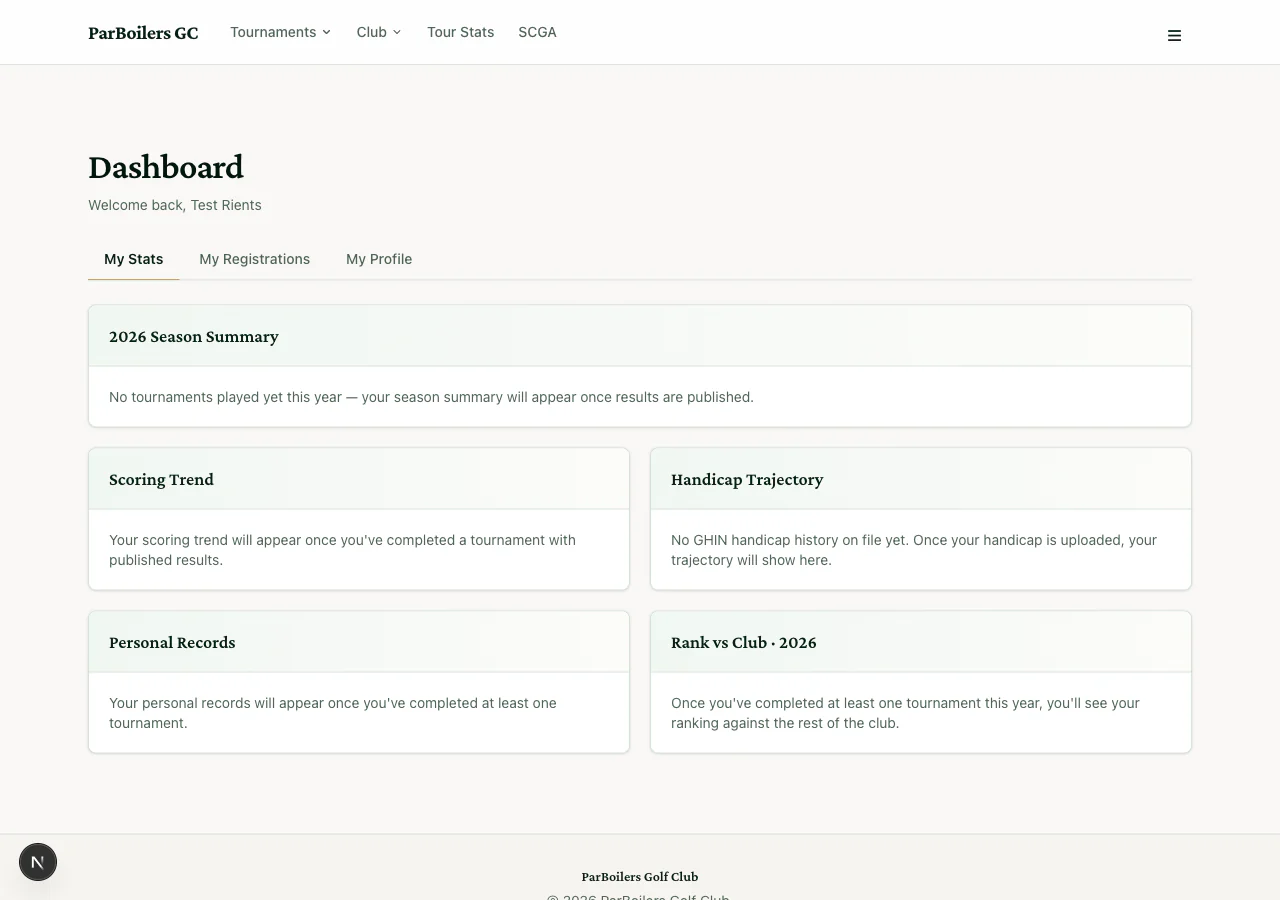
Once you're signed in, click ☰ → Dashboard to see your personal page. Here you'll find:
- Your name
- Your GHIN number
- Your current handicap index
- Your personal stats and recent tournament history
Your handicap or GHIN looks wrong? Handicaps are updated by our admins. Contact us (section 8) and we'll get it sorted.
3. Signing up for a tournament
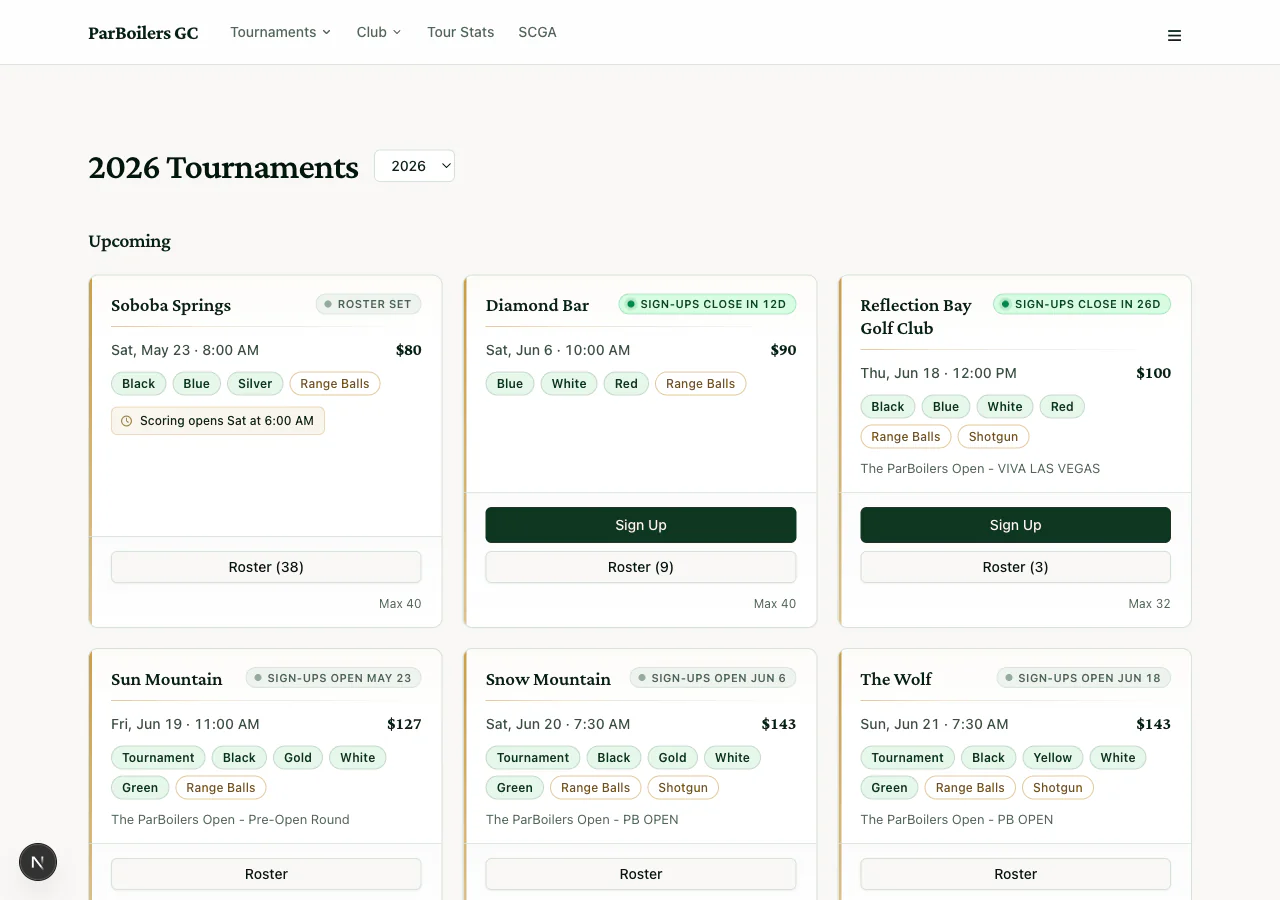
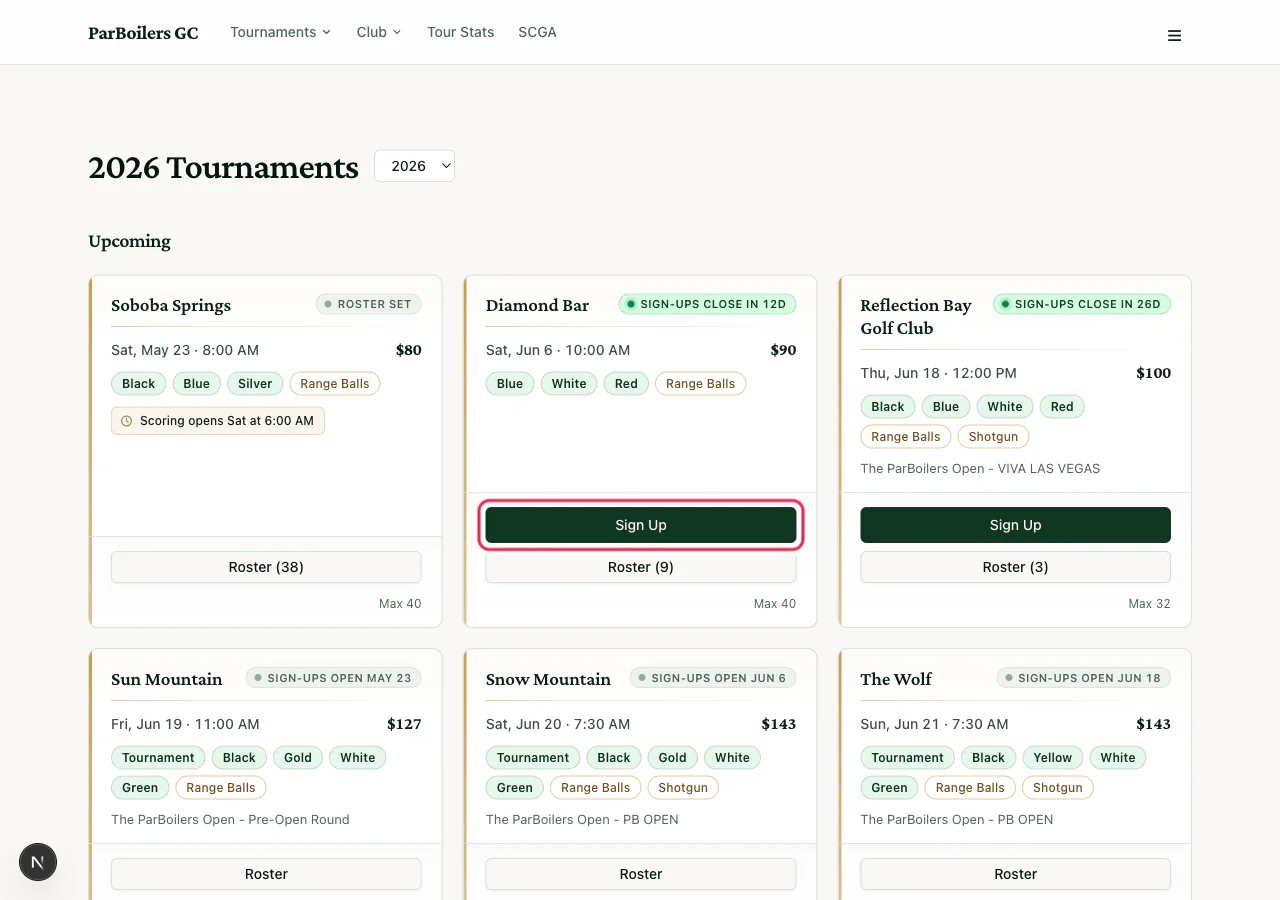
- Click Tournaments in the top menu. You'll see a list of upcoming events.
- Find the tournament you want to play in and click the green Sign Up button right on its card.
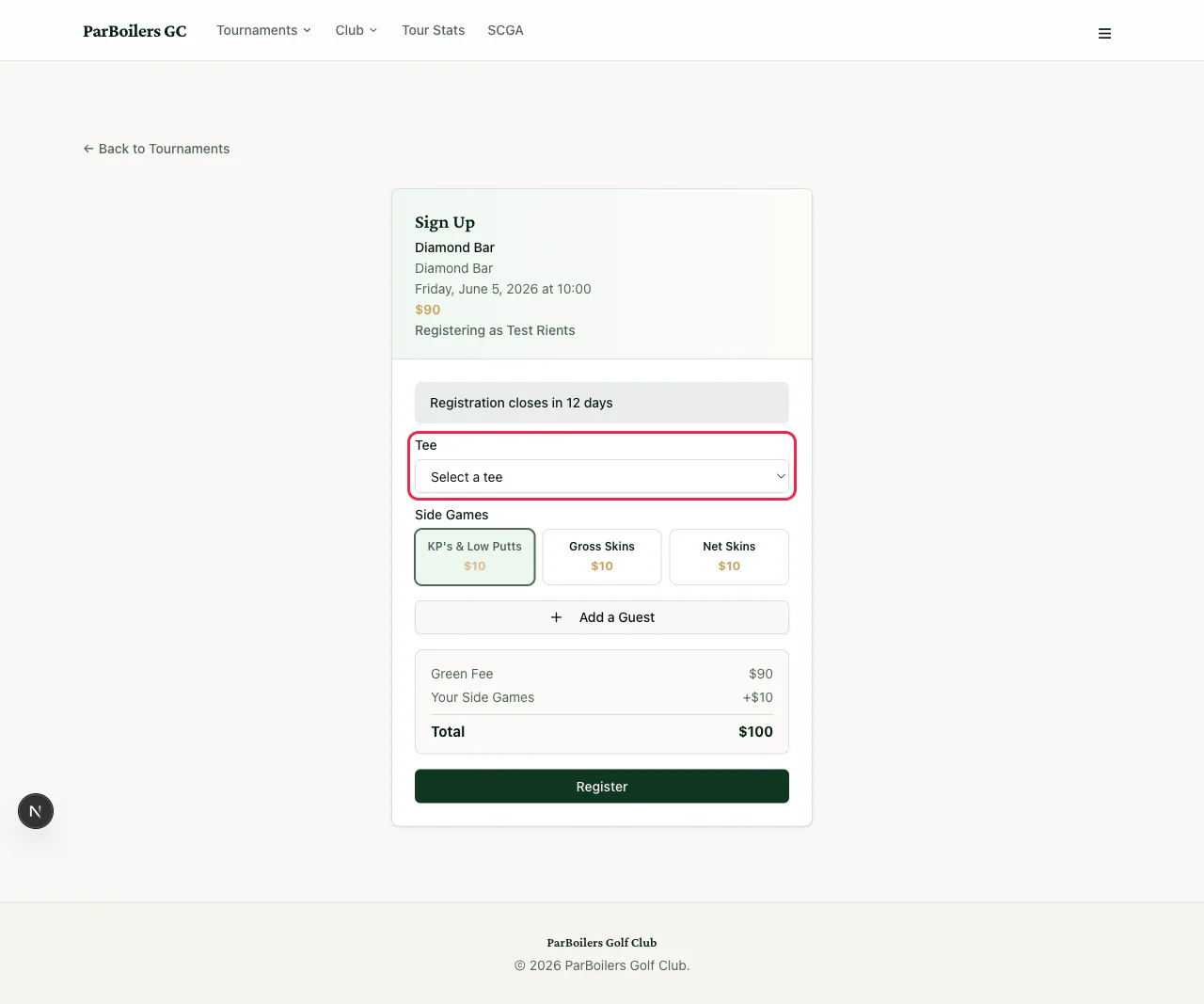
Pick your tee
Use the Tee dropdown to choose which set of tees you'll play from. Not sure which to pick? Ask any board member — but most players stay on the same tee each tournament.
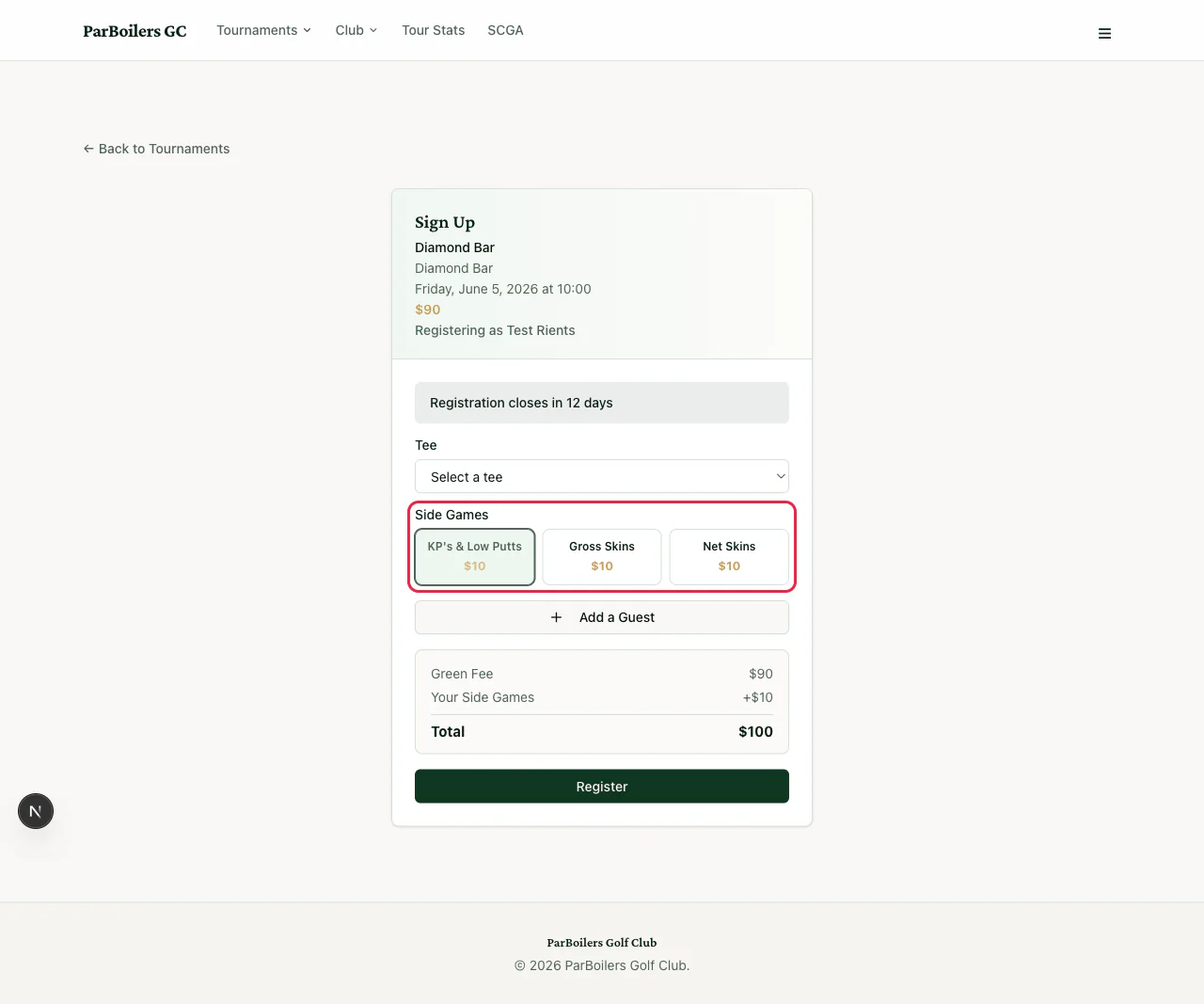
Choose your side games
Side games are optional extra contests. The signup form lists each one with a button — tap to turn it on or off.
- KP's & Low Putts ($10) — KPs (closest-to-pin) are scored on the par-3 holes. Low Putts goes to whoever takes the fewest putts in the round.
- Gross Skins ($10) — a "skin" is when one player has a lower score than everyone else on a single hole. Pot pays out per skin won.
- Net Skins ($10) — same idea, but using your handicap-adjusted score. Requires a valid GHIN.
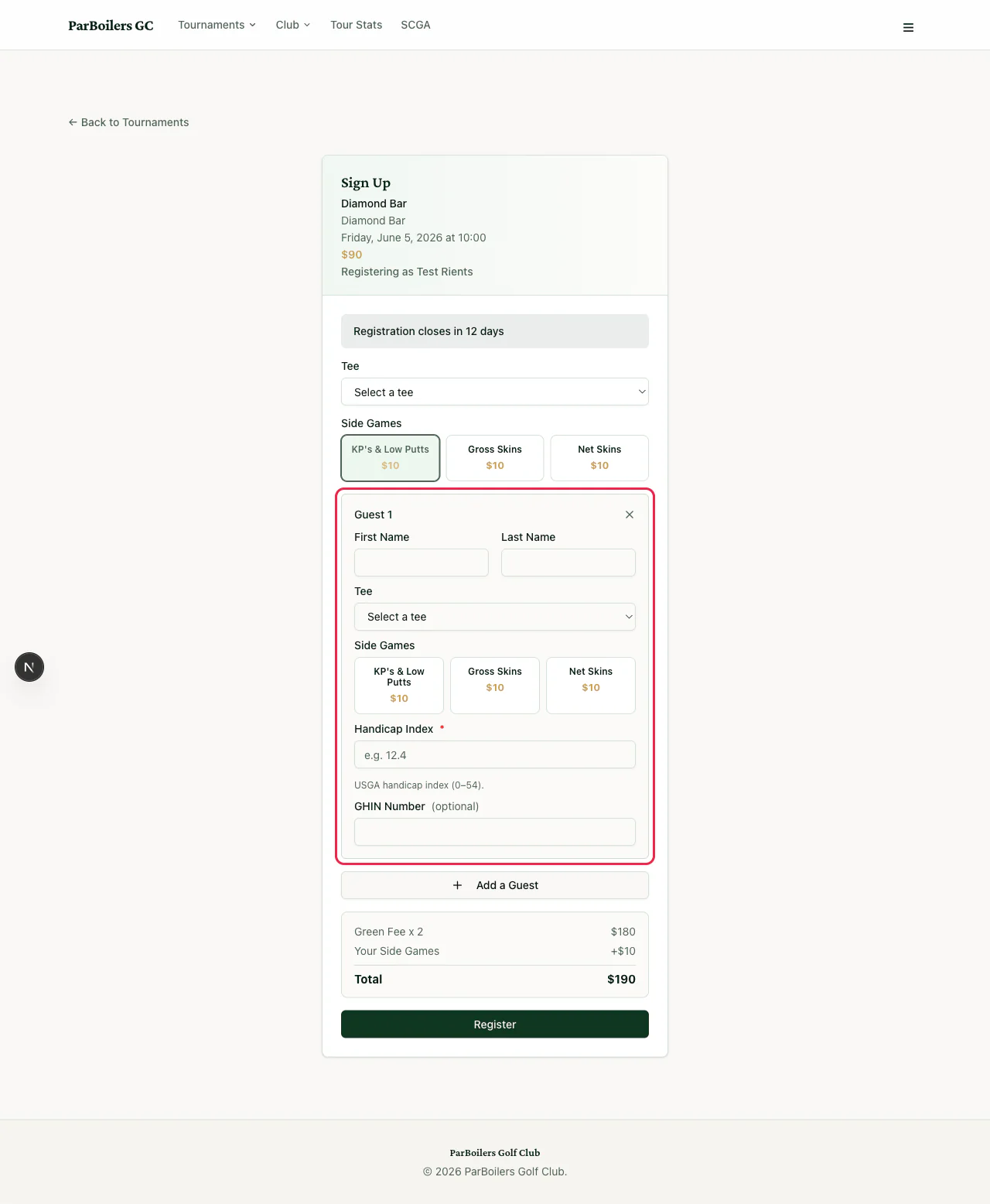
Adding a guest
Tap Add a Guest. You can bring up to 3 guests. For each guest, you'll enter:
- First and last name
- Which tee they're playing
- Their handicap index
- Their GHIN number (only required if the guest is playing Net Skins)
Review and submit
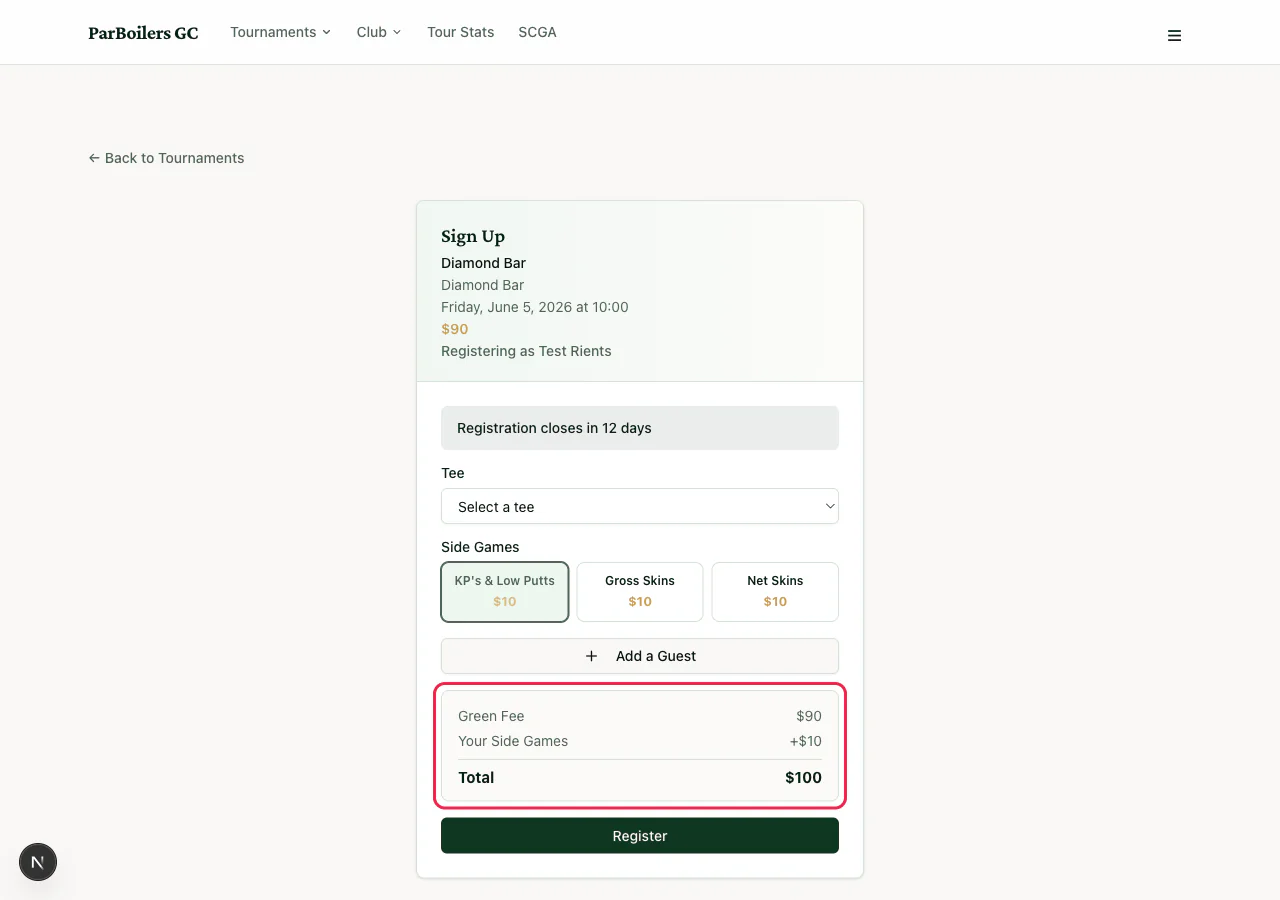
At the bottom of the form, you'll see a fee breakdown — the green fee, side games, and total. Double-check it, then click Register.
Confirmation email
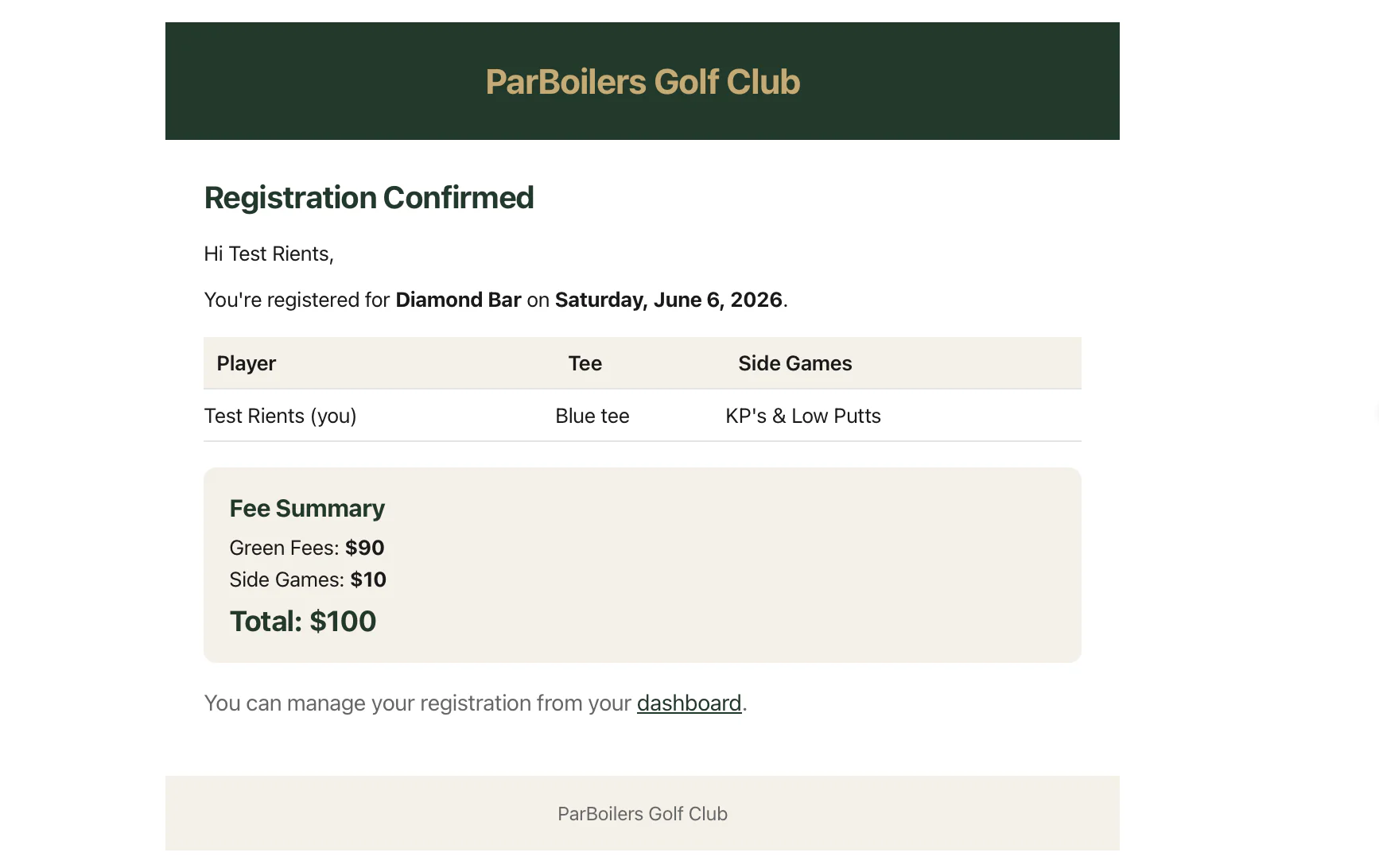
Right after you register, you'll get a Registration Confirmed email listing the tournament, your tee, side games, and fee summary. Keep it for your records — and there's a dashboard link inside if you ever need to manage the registration.
4. Changing or canceling your registration
Changed your mind about your tee, side games, or guests? You can edit your registration up until the deadline.
- Go to the tournament page (Tournaments → click the tournament).
- Click Manage Registration.
- Update your tee, side games, GHIN, or handicap. You can also add or remove guests.
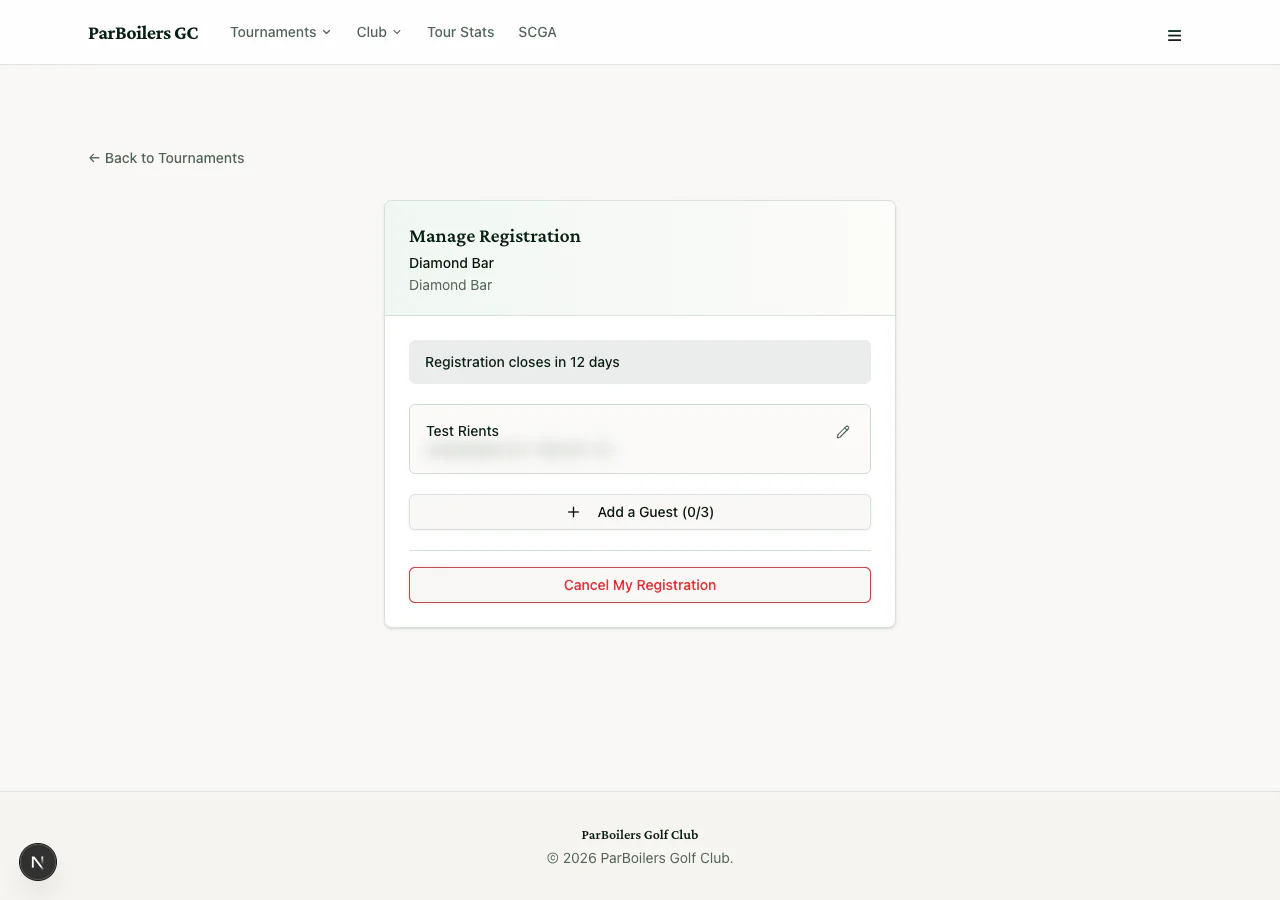
Need to cancel? On the same page, scroll down and click the red Cancel My Registration button. You'll be asked to confirm. Cancellation is only available before the registration deadline.
5. Scoring during the round
On tournament day, one person in each group is the scorekeeper — they enter scores for everyone in the group on their phone.
Opening the scorecard
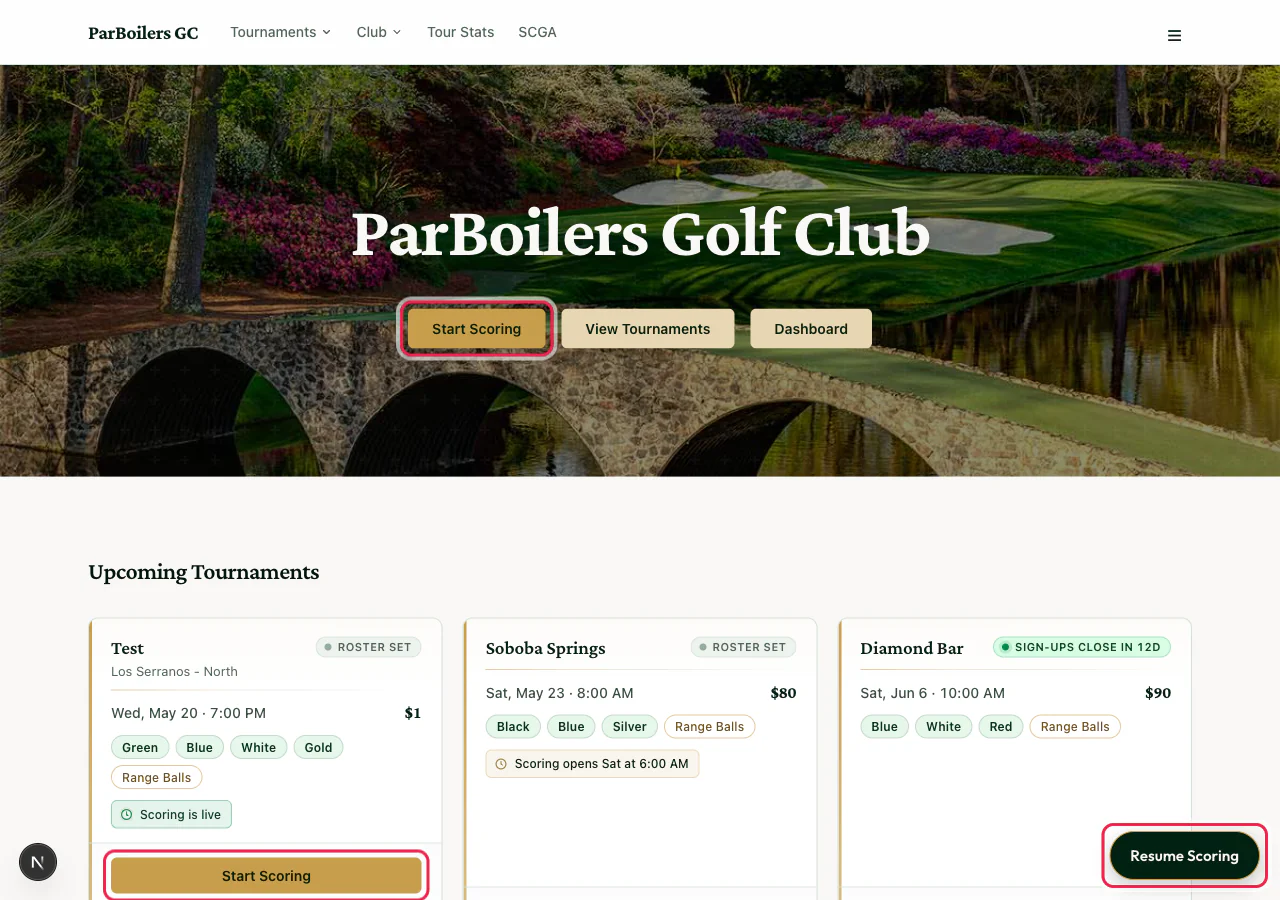
Once the tournament begins, there are three places to start scoring — pick whichever you spot first:
- The gold Start Scoring button near the top of the home page
- The Start Scoring button on the tournament's card in the Upcoming list
- The green Resume Scoring pill in the bottom-right corner of every page
Pick who you're scoring for
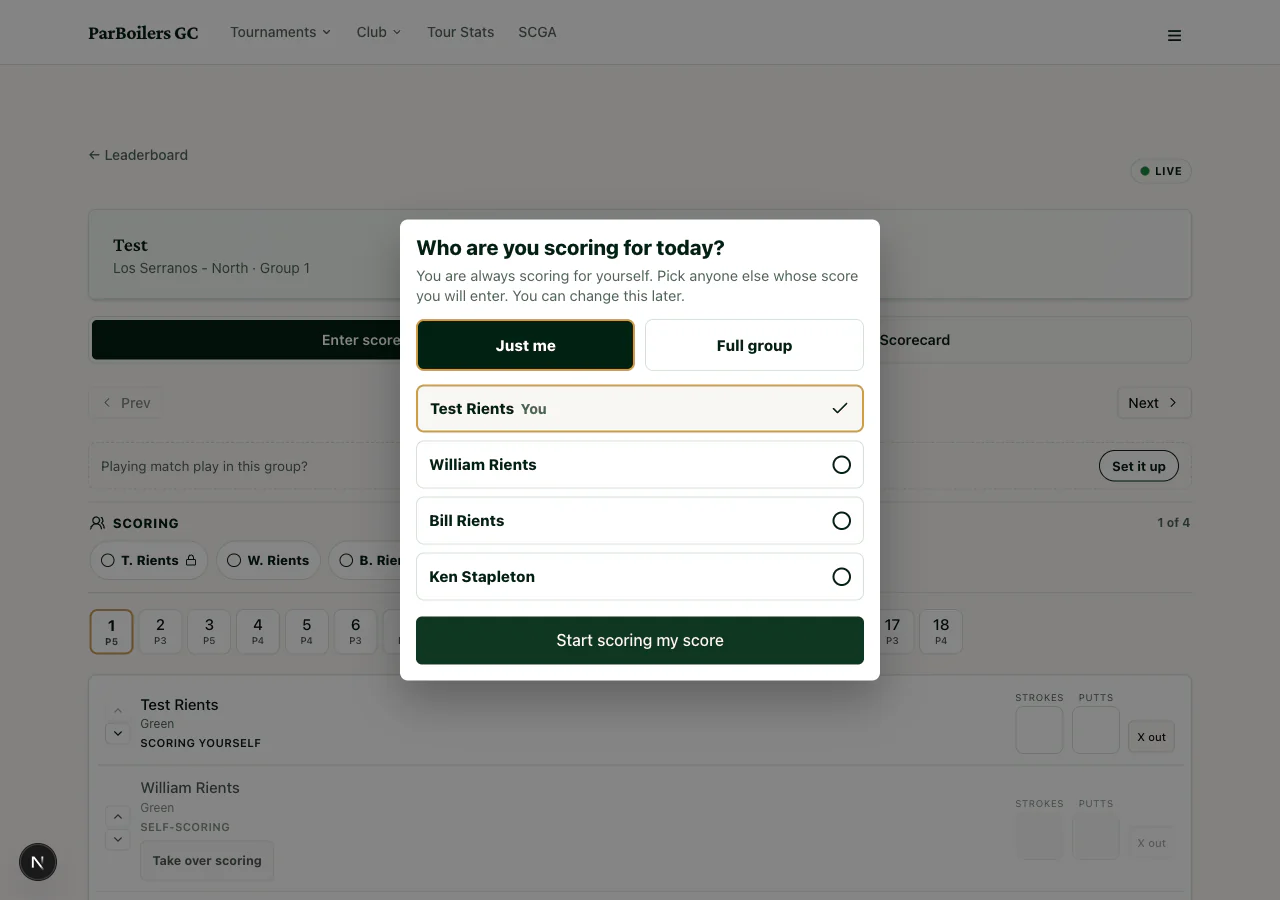
First time you open the scorecard, you'll see Who are you scoring for today? Choose Just me to score only yourself, or Full group and check the other players you'll enter scores for. You can change this later.
Match play
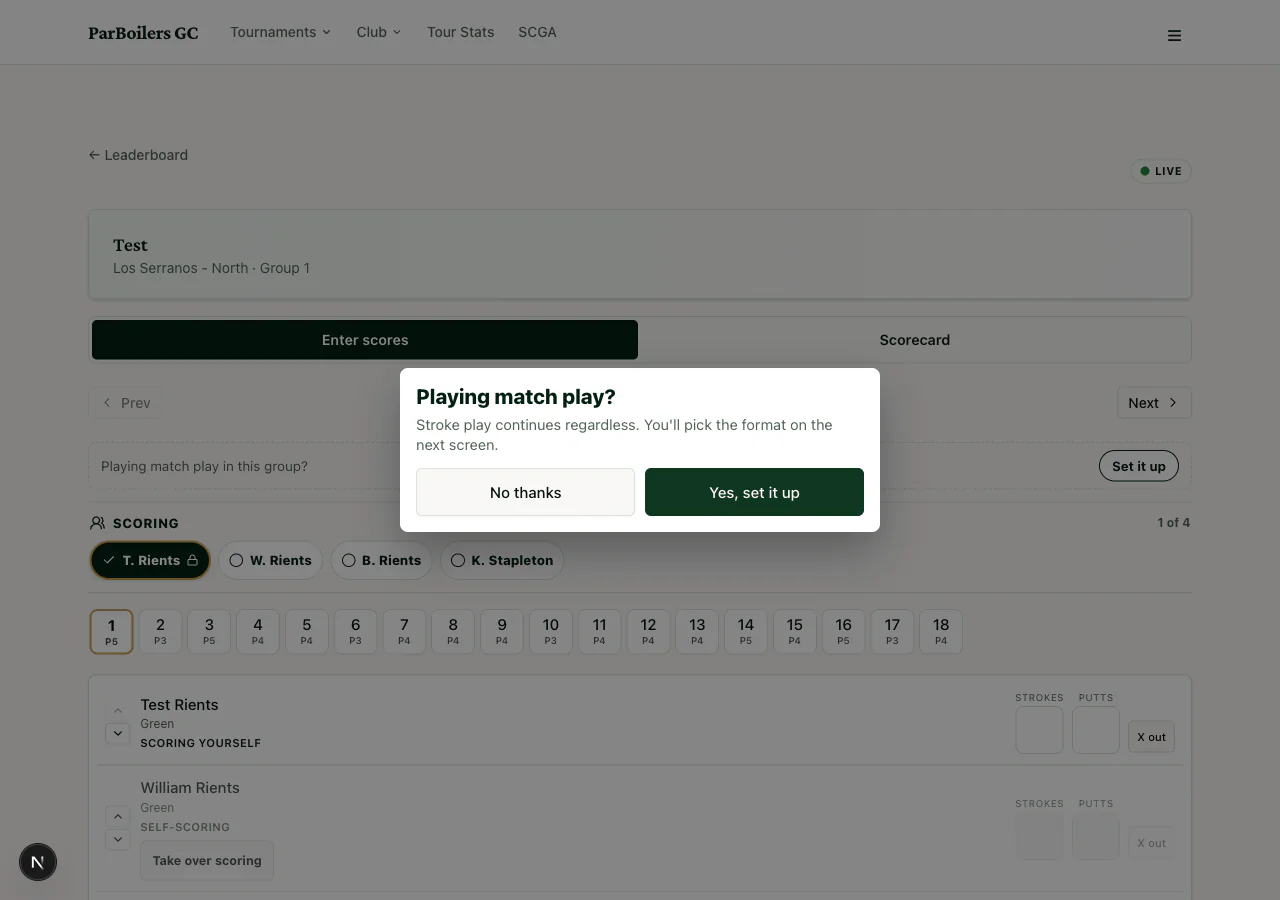
Right after that, you'll be asked Playing match play? If your group is playing a match, tap Yes, set it up and pick the format and teams on the next screen. If not, tap No thanks. After setup, just enter strokes as usual — the system tracks the match for you automatically.
Entering strokes
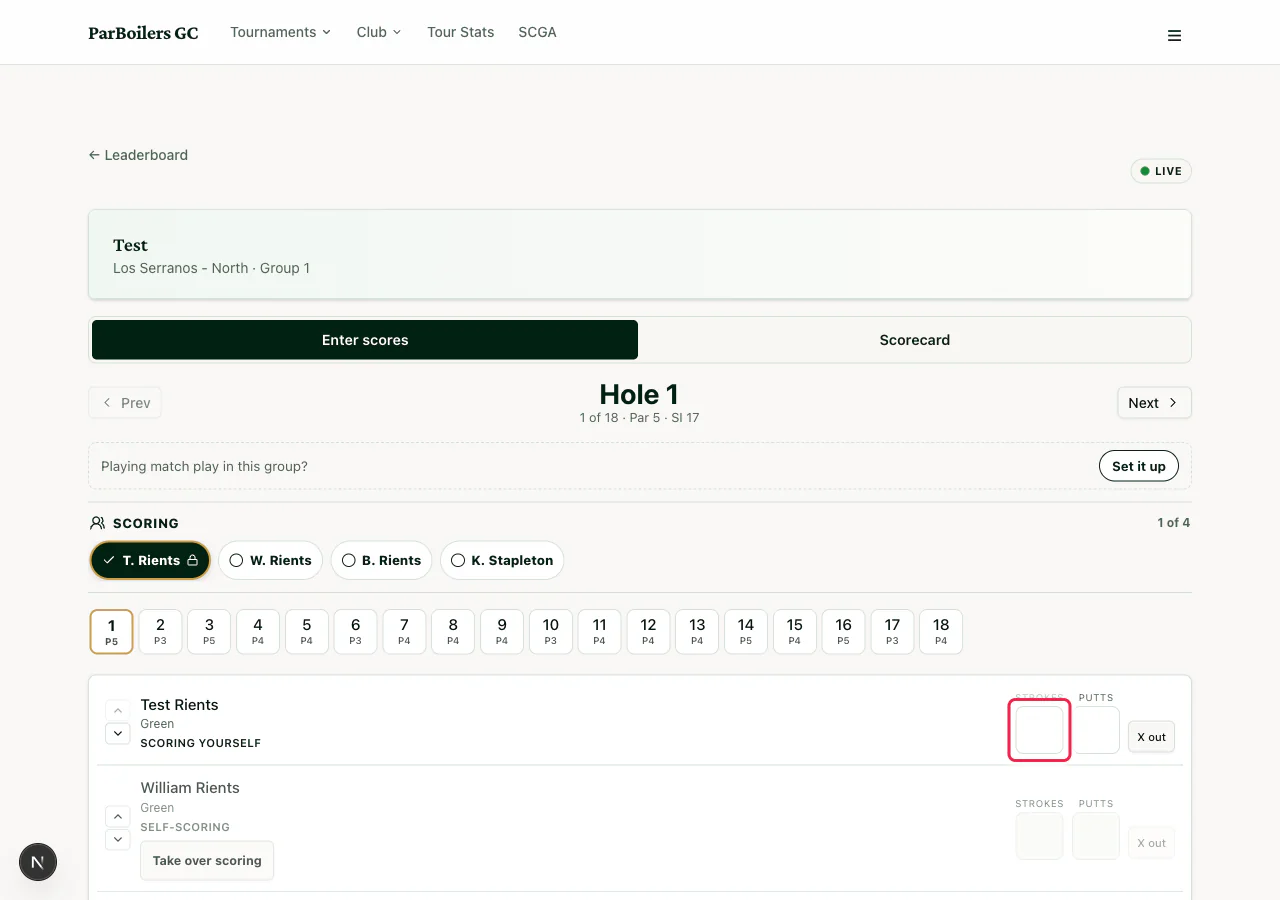
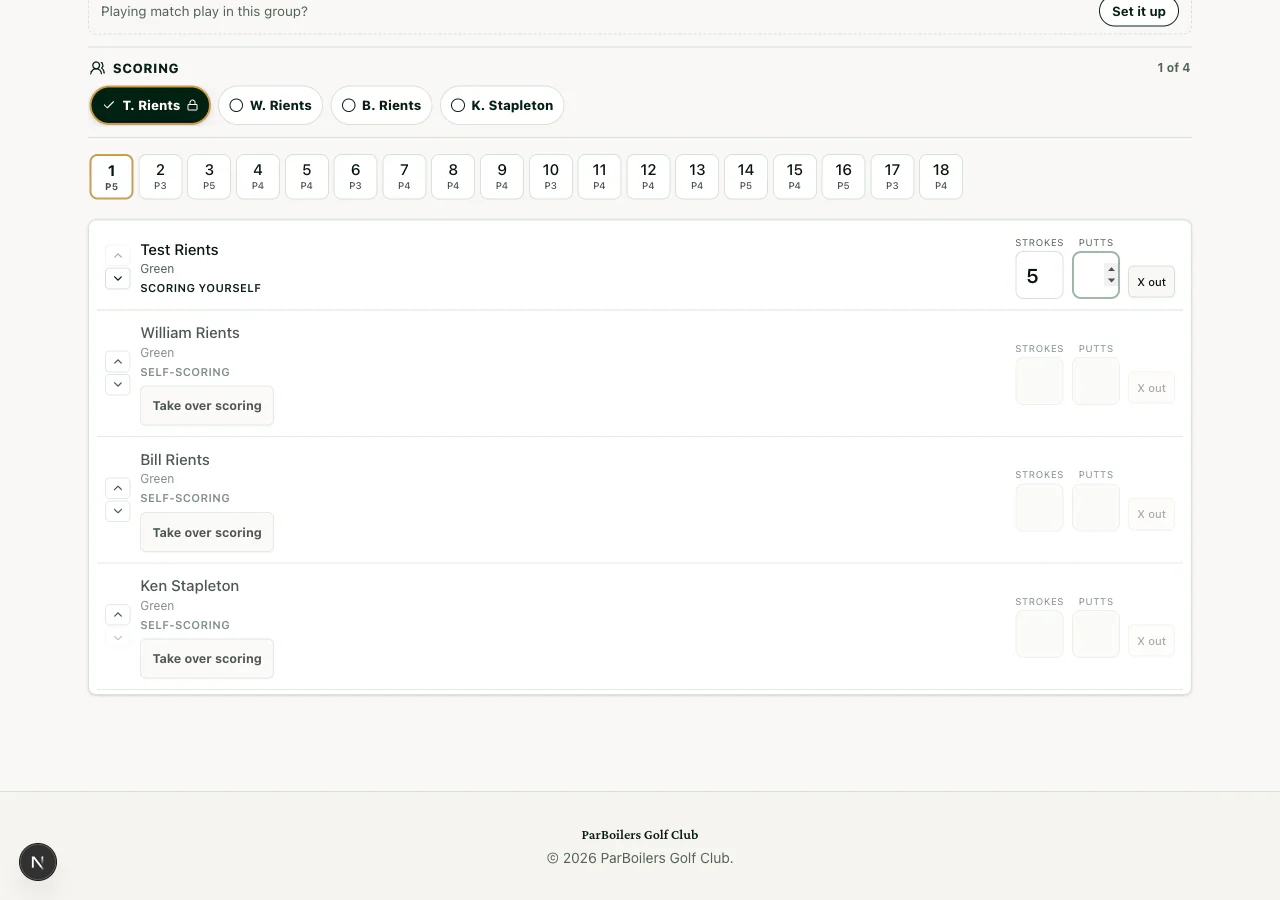
For each hole, tap the strokes box next to a player's name and type the number. The cursor moves to the putts box on its own.
Entering putts
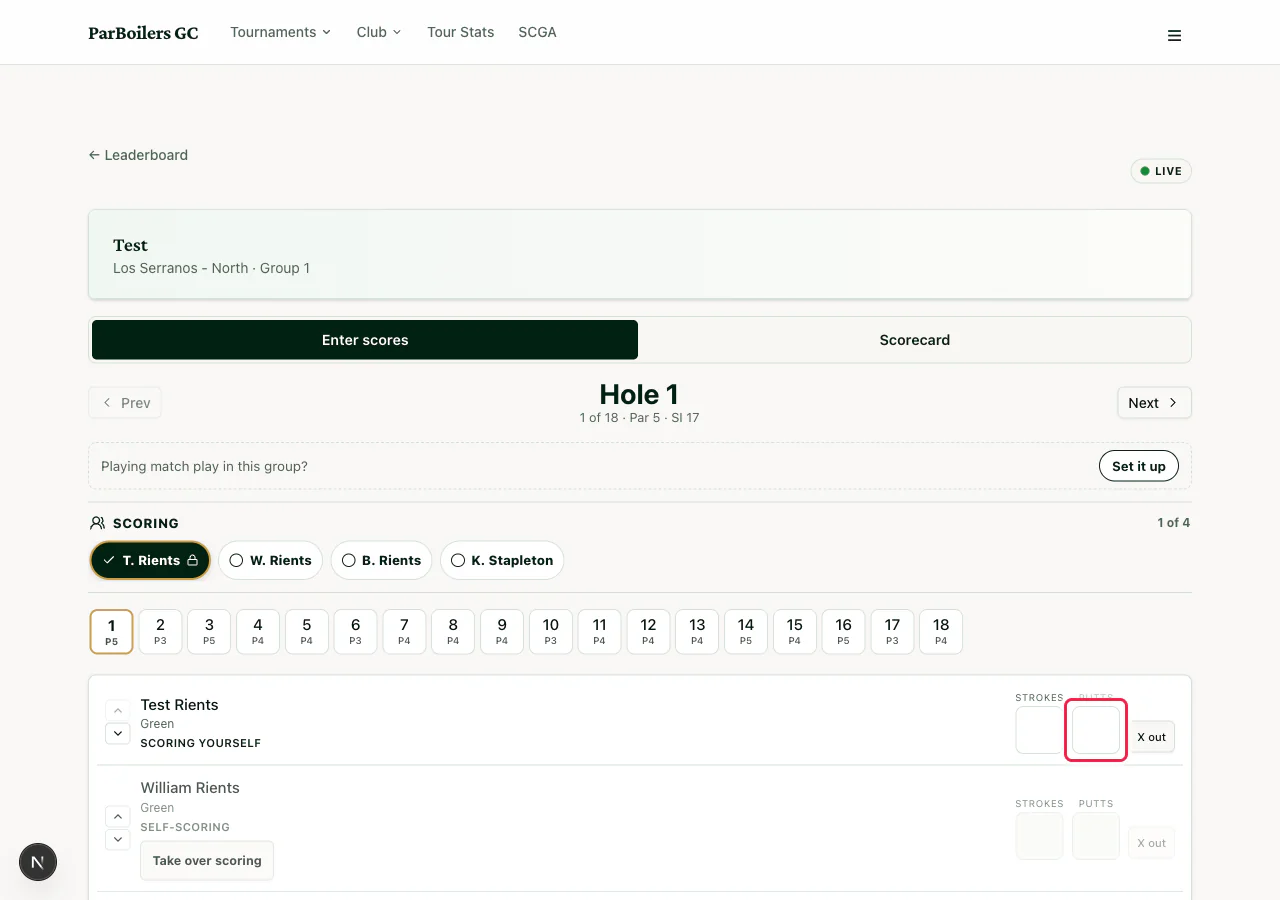
Right next to strokes is the putts box. Same idea — tap, type the number of putts taken on that hole.
Closest-to-pin (CTP)
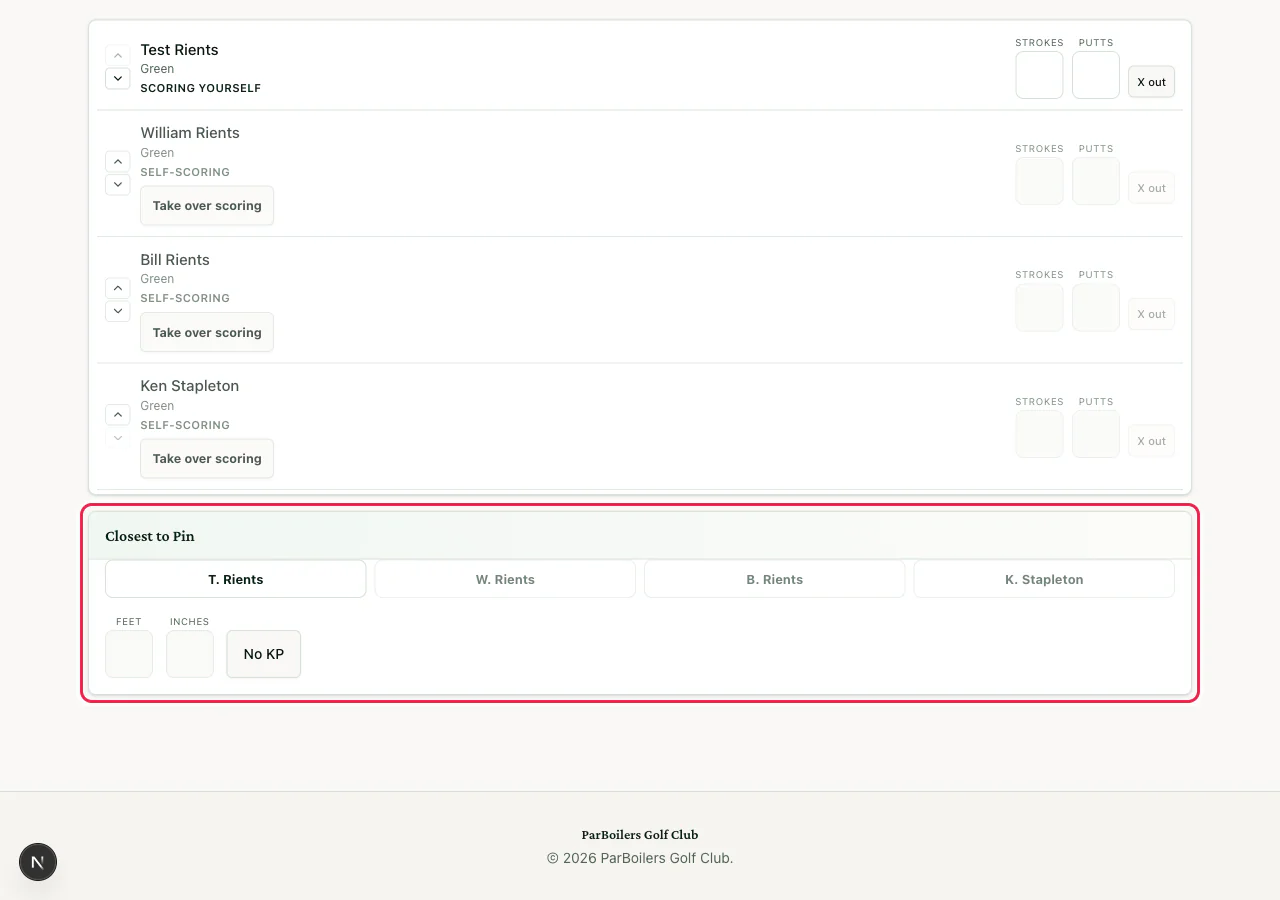
On par-3 holes, a Closest to Pin section appears at the bottom of the scorecard. Tap a player, then enter the distance in the FEET and INCHES boxes — for example, 8 ft 4 in.
If a player's tee shot missed the green (or they're not playing KPs), tap No KP.
"Did my score save?"
Scores save automatically as you type. The number stays in the box and the cursor moves on — that's your confirmation. If you lose signal mid-round, your numbers stay put and sync the moment you're back online, so just keep playing.
6. Viewing the leaderboard & scorecard
Anyone can watch the leaderboard during the tournament — even if you're not playing.
- Click Tournaments in the top menu and scroll to the tournament you want.
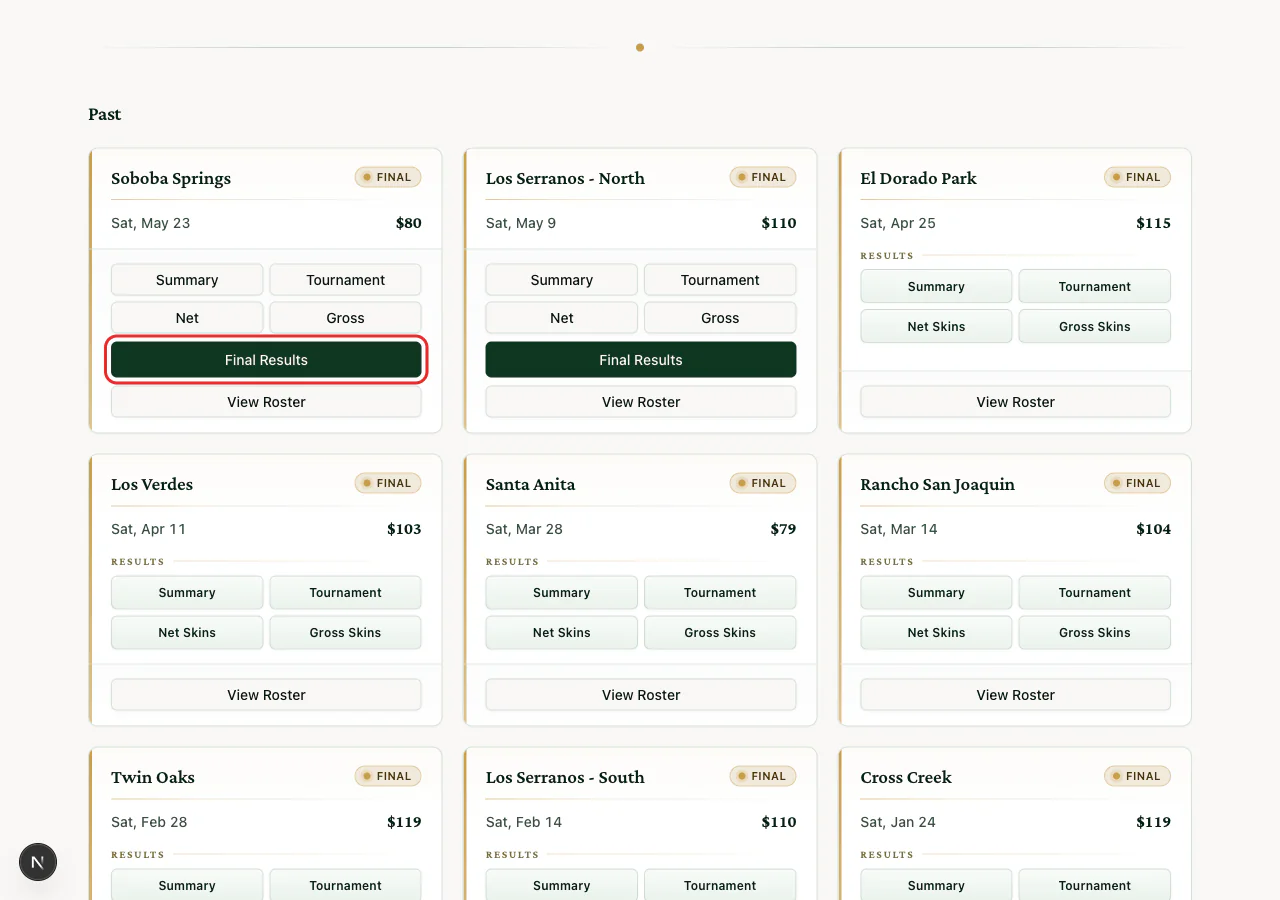
- Click the green View Leaderboard button on its card (or Final Results once the tournament is finished).
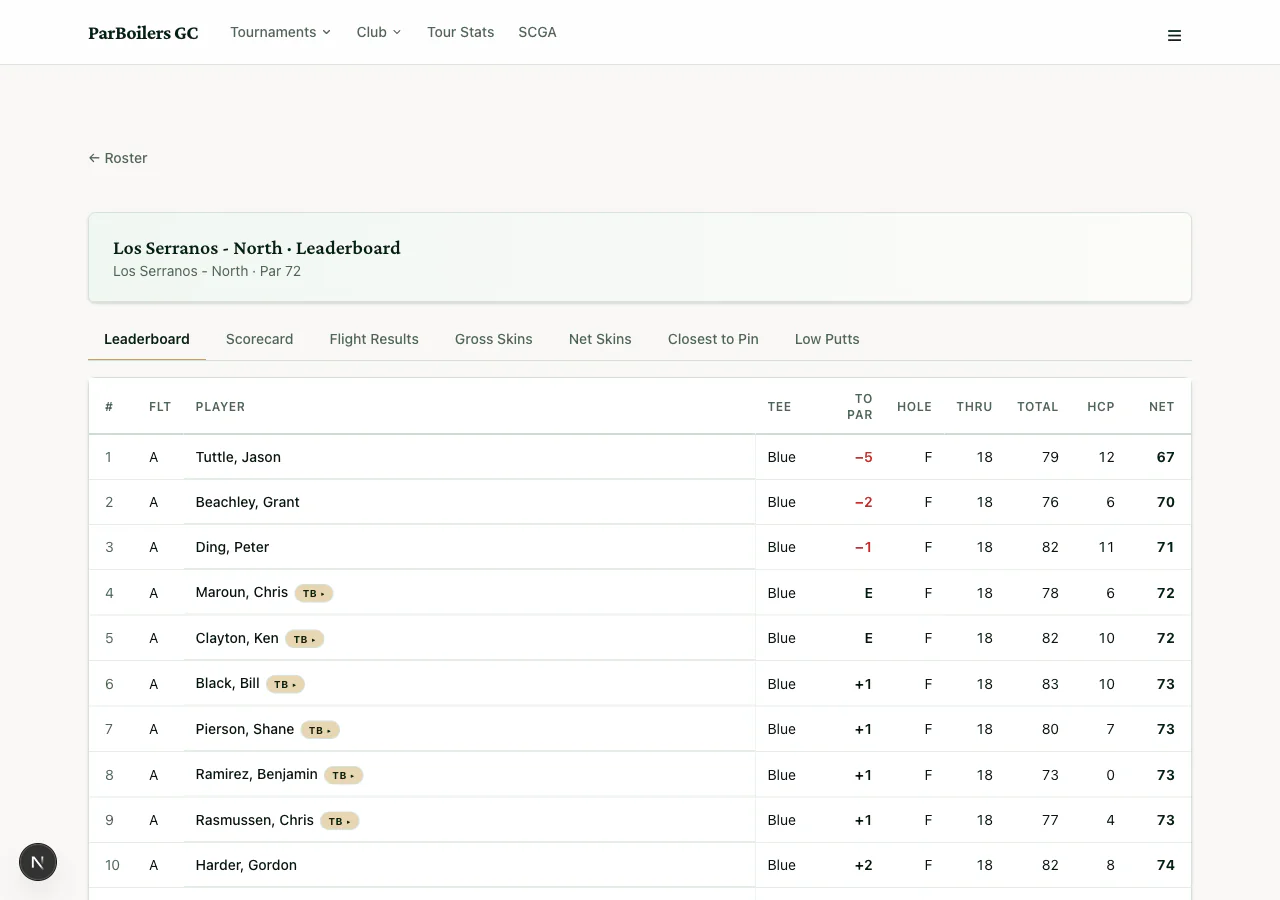
The Leaderboard tab
Shows every player's standing. Key columns:
- FLT — which flight they're in (A, B, C…)
- TO PAR — score relative to par (red = under par)
- THRU — which hole the player has finished (F means done)
- TOTAL — gross strokes
- HCP / NET — handicap and the handicap-adjusted score
The Scorecard tab
Shows every player's hole-by-hole scores grouped by playing group. Green cells mean birdie or better, red means bogey or worse. OUT is the front nine, IN is the back nine, TOT is the total, and NET shows the handicap-adjusted score.
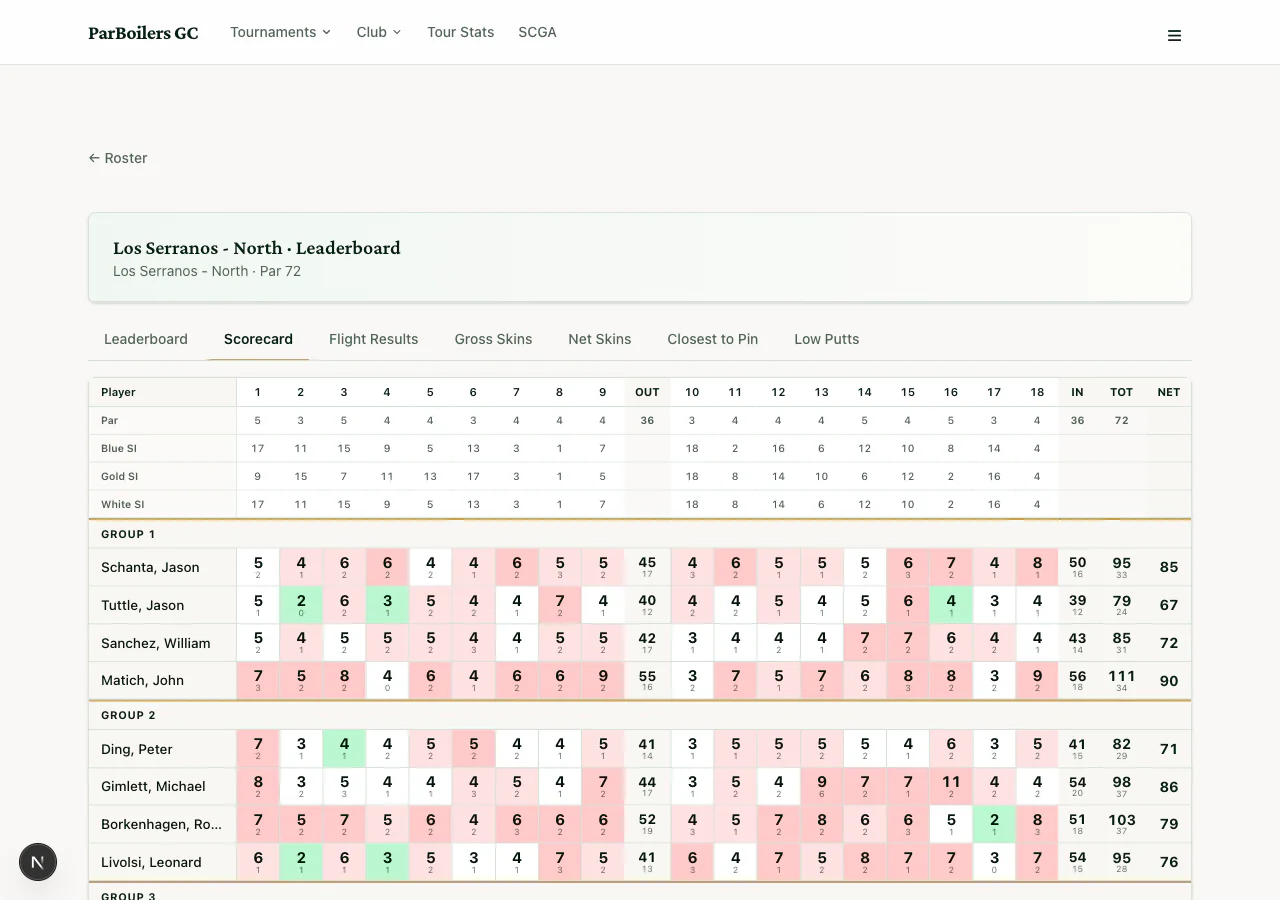
The page updates by itself — no need to refresh. As scorekeepers enter scores, the leaderboard moves in real time.
7. After the tournament — results
Final results appear on the same Leaderboard page, but in extra tabs that show up once the admin publishes them (usually shortly after the last group finishes).
Flight Results
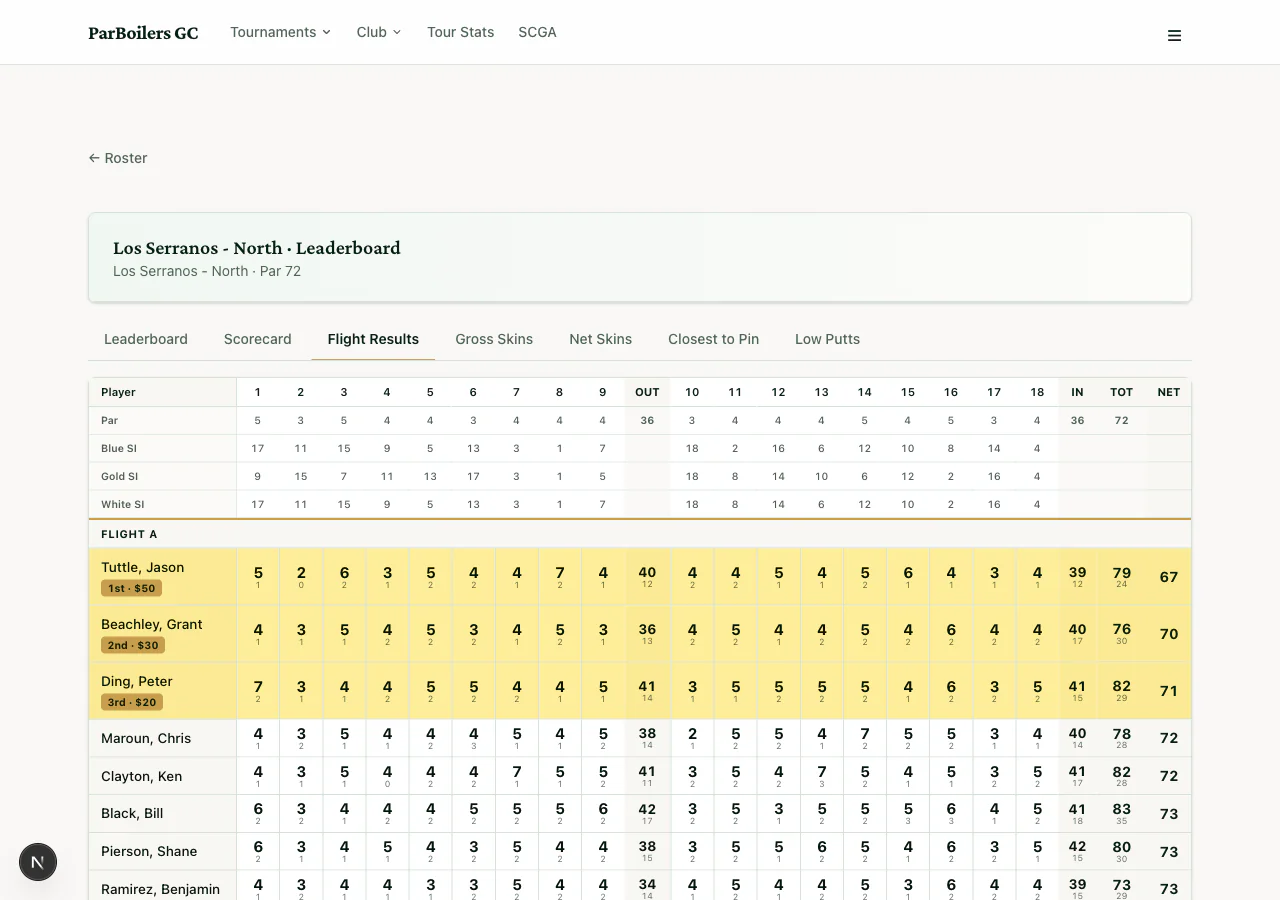
Players are grouped into flights by handicap. The Flight Results tab shows the standings and prize winners in each flight, with prize markers like 1st • $50, 2nd • $30, 3rd • $20 right under each winner's name.
Skins (Gross & Net)
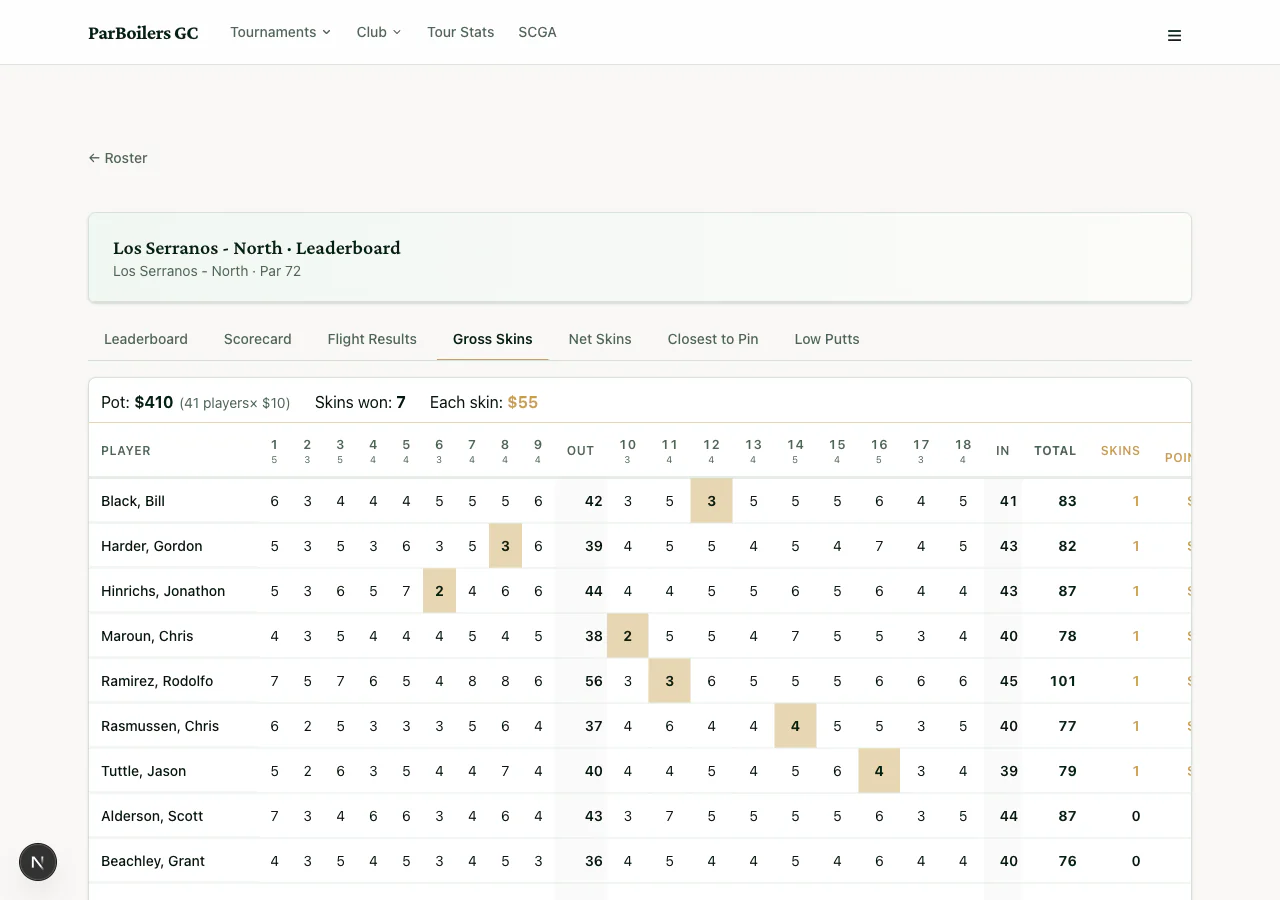
A skin is when one player has the lowest score on a single hole, with no one tying them. The Gross Skins and Net Skins tabs show the total pot, how many skins were won, the value of each skin, and which holes earned them.
Closest to Pin
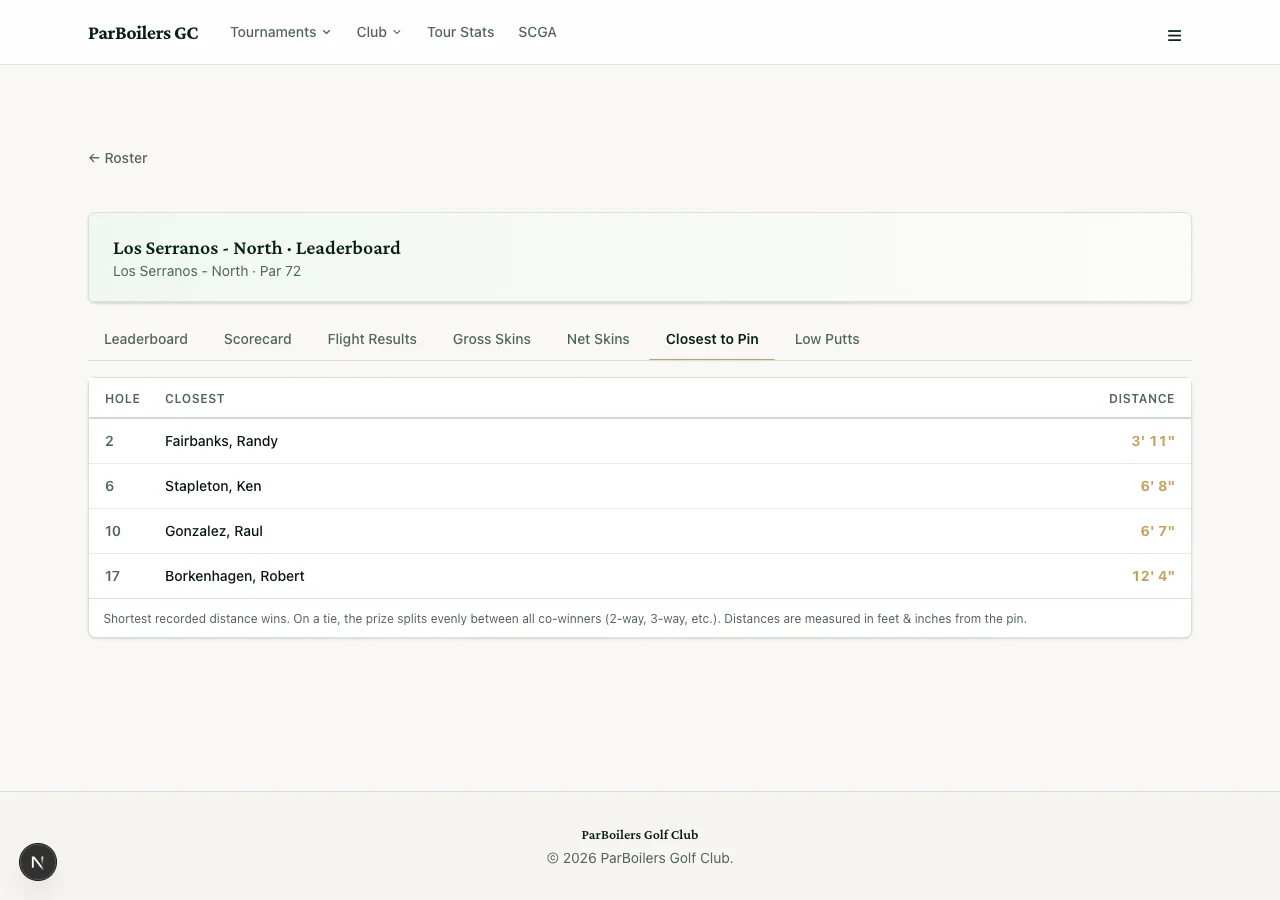
One winner per par-3 hole — the player whose tee shot landed closest to the pin, with the distance shown in feet and inches.
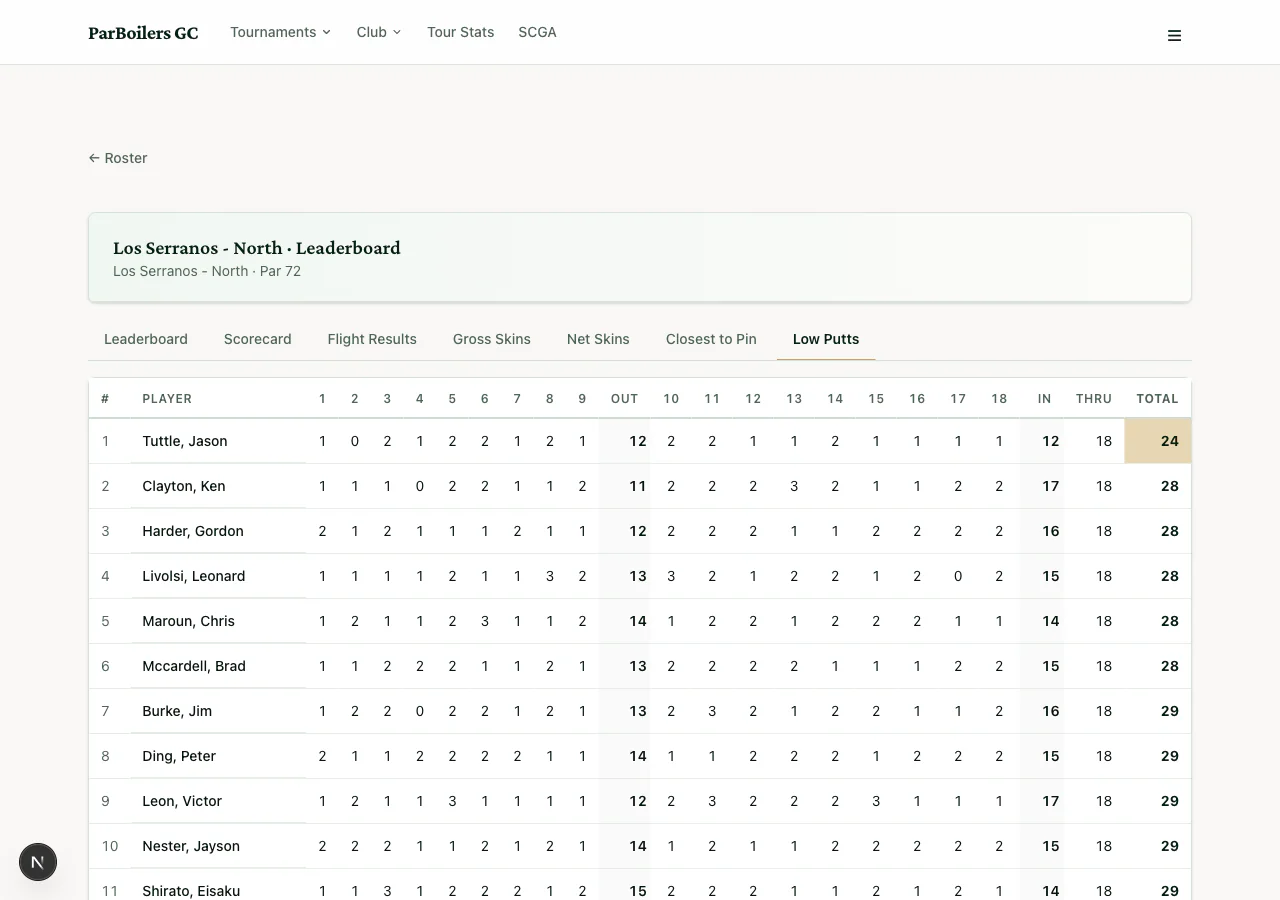
Low Putts
The player who took the fewest putts during the round wins. Ties split the prize. The tab shows putts per hole for everyone.
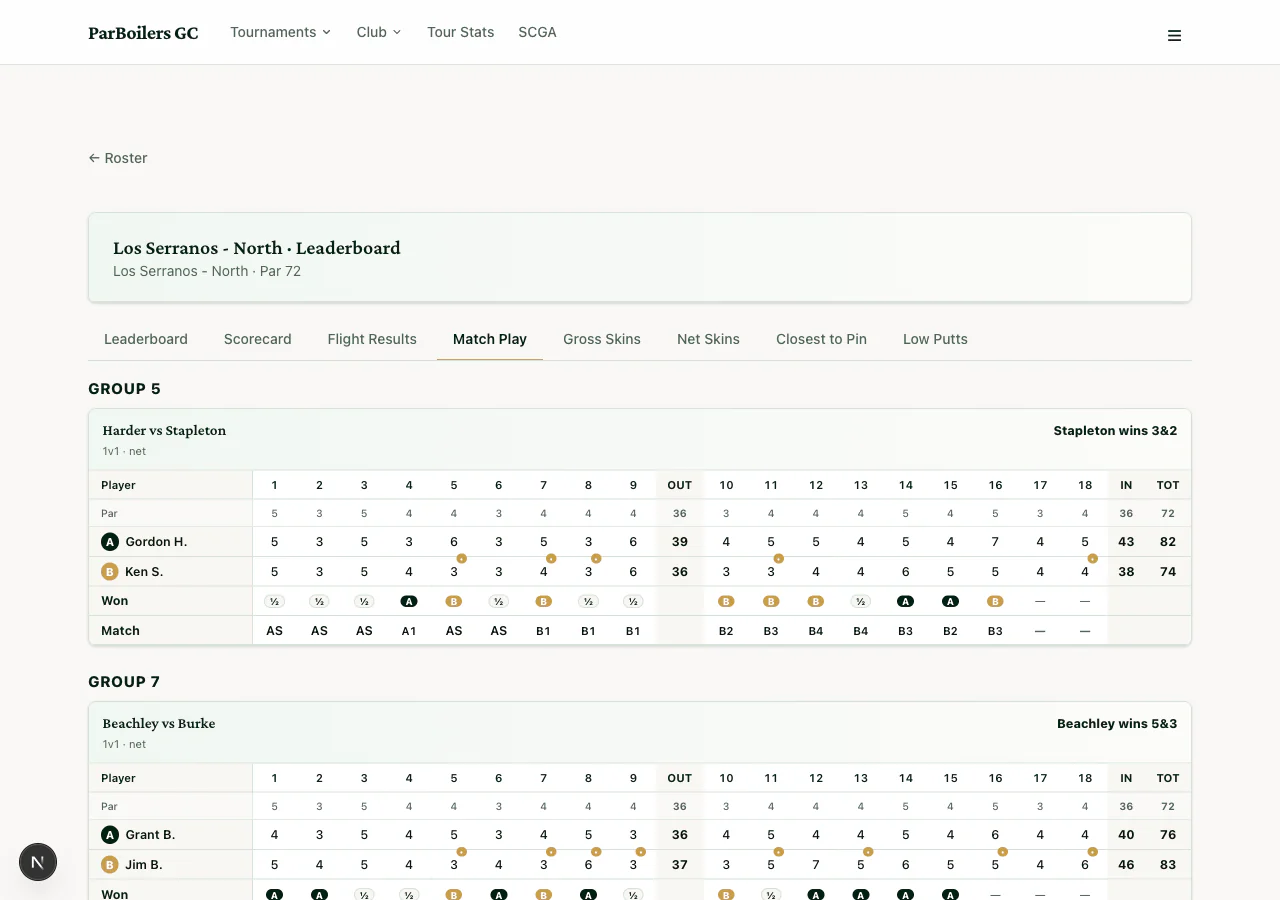
Match Play
If matches were played in this tournament, this tab shows the head-to-head scorecard for each match, with hole-by-hole winners (A or B markers), the running match status (AS, A1, B2, etc.), and the final result like "Stapleton wins 3&2".
8. Getting help
If something isn't working, or you can't figure out how to do something, reach out:
Email kstapletonaig@sbcglobal.net.
You can also check the FAQ page for common questions.